


The Problem with Cloud-Based AI Coding #
Claude Code has been one of the most impressive coding assistants available, and for good reason. The results speak for themselves: it can build complete applications from simple prompts, handle complex refactoring, and make intelligent architectural decisions by asking questions. It’s genuinely remarkable.
But there’s a catch: the pricing model is designed to lock you in.
The cost structure is brutal:
- Basic plan: ~€20/month (with usage limits that freeze your access daily and weekly)
- Unlimited access: ~€100+/month
- API: You’re paying for tokens! It’s easy to burn through millions of tokens on a single complex prompt.
You pay the premium price, but you’re still blocked from using what you’re paying for. This paradox has driven me to explore alternatives.
The Solution #
Here’s a radical idea: what if you could use Claude Code without paying a single euro? What if you could use it as much as you want, without worrying about token limits or subscription freezes?
Enter NVIDIA DGX Spark and the growing ecosystem of open-source large language models.
I’m not suggesting you need to own a DGX Spark to benefit from this approach (though if you do, you’re in for a treat). The real point is: the AI landscape is shifting. Open-source models are becoming competitive with proprietary solutions, and the infrastructure to run them locally is more accessible than ever. Soon, running your own model might not be a luxury, it might be the obvious choice.
Setting up the Environment #
Prerequisites #
What you’ll need:
- LM Studio installed on both your Spark machine and your local machine (where you develop)
- Claude Code installed on your local machine
- An account on LM Studio Link for synchronization between machines
I’ll skip the initial Spark setup details, but assume you have LM Studio running. On my end, I’ll demonstrate this on a Mac.
Auto-Starting LM Studio on Spark #
By default, LM Studio doesn’t automatically start when your Spark boots up. This means you’d need to manually SSH into the machine and manually activate it every time—tedious.
It is easy to fix it by just setting up a systemd service that automatically awakens LM Studio on boot.
Step 1: Find your LM Studio binary path
On your Spark machine:
which lmsThis should output something like:
/home/spark-username/.lmstudio/bin/lmsReplace spark-username with your actual Spark username.
Step 2: Create a systemd service file
nano ~/.config/systemd/user/lmstudio.servicePaste the following configuration (replace spark-username with your actual username):
[Unit]
Description=Wake up the LMS on Boot
After=network.target

[Service]
Type=oneshot
ExecStart=/home/spark-username/.lmstudio/bin/lms ps
RemainAfterExit=yes

[Install]
WantedBy=default.target
Step 3: Enable and reboot
systemctl --user daemon-reload
systemctl --user enable lmstudio.service
sudo reboot now
Now, whenever your Spark reboots, LM Studio will automatically start. You won’t need to SSH in and manually boot it every time. It will just work.
Choosing the Right Model #
Constraints #
The biggest bottleneck when running LLMs locally isn’t compute—it’s memory. The Spark has 128GB of VRAM, which sounds like a lot, but isn’t when you’re running serious models. If you want to maximize performance and avoid constant slowdowns, be strategic about which model and quantization level you choose.
Check this Open Source LLM Leaderboardd to see the latest models ranked by performance. If you filter by “coding,” you’ll see a tiered list showing different model sizes and their capabilities.
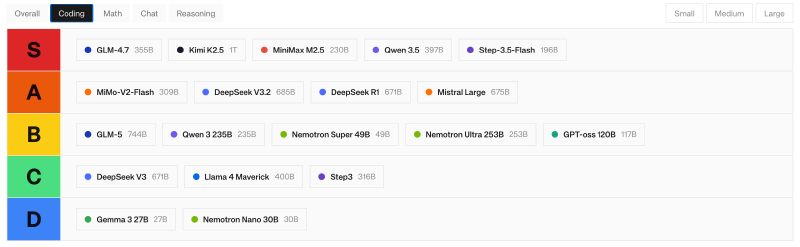
For this guide, I’m using Step-3.5-Flash, which offers excellent coding capabilities and good context window (up to 256K tokens).
Model Installation #
On your Spark machine:
lms get Step-3.5-FlashThis will show you several quantization options. Choose the bartowski/stepfun-ai_Step-3.5-Flash-GGUF
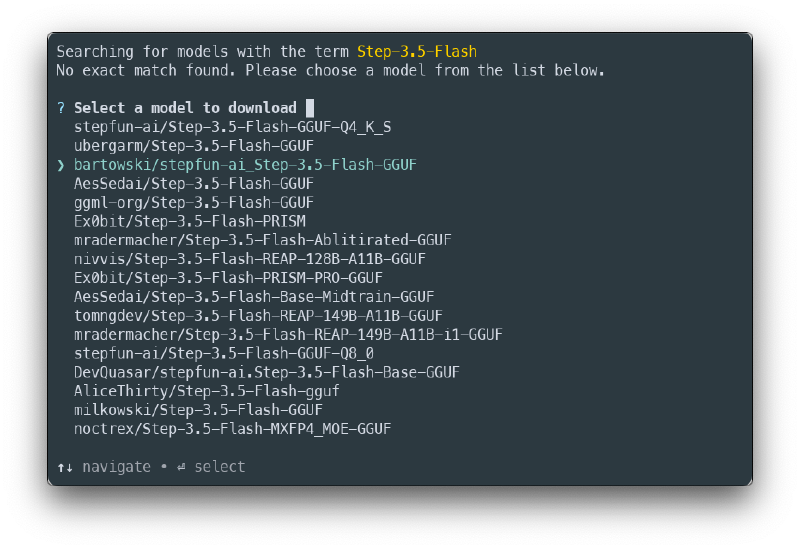
After that, from the list that appears, select the iq3_xs quantization as shown on next image.
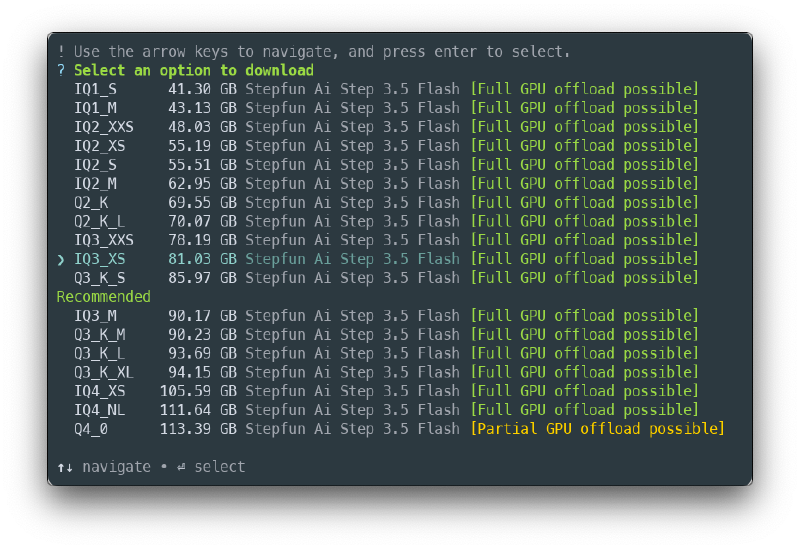
This is important to have in mind when you choose a model version:
- Too large: Uses too much VRAM, causing slowdowns or crashes (choose between 70-85GB models)
- Too aggressive quantization: Sacrifices too much quality for size
iq3_xshits the sweet spot, as it has a good quality while leaving breathing room for context and other operations
The download will take a while (it’s an 80GB+ model), so be patient.
Model Configuration on Your Local Machine #
Once the model is downloaded on the Spark, go to LM Studio on your local development machine and configure the model settings before loading it.
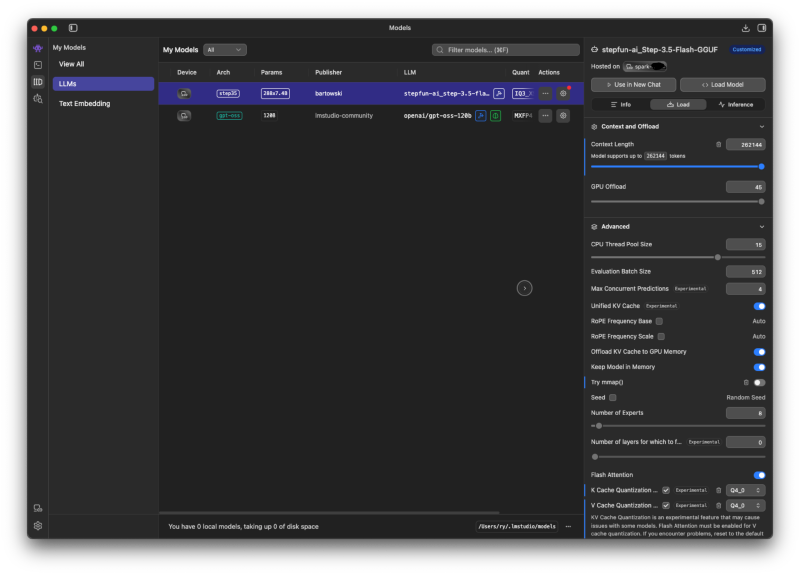
These tweaks optimize memory usage and ensure compatibility:
Configure these parameters:
-
Context Length: Set to maximum (256K for this model) → Claude Code benefits from larger context windows to understand your entire codebase
-
Disable mmap(): Uncheck “Try mmap()" → Prevents memory mapping issues that can cause slowdowns
-
Cache Quantization: Enable K-cache and V-cache quantization, set both to
Q4_0→ Dramatically reduces memory footprint during inference without significantly impacting quality -
Prompt Template: Go to the Inference section and find the Prompt Template → This is critical for Claude Code compatibility. Find the line containing
| safeand delete it.Original template snippet:
...{content | safe}...Remove the
| safefilter so it looks like:...{content}...
Once these settings are configured, you’re ready to load the model from LM Studio.
Configuring Claude Code #
Now comes the critical part: telling Claude Code to use your local LM Studio server instead of the Anthropic cloud API.
Settings File #
On your local machine, create a configuration file:
nano ~/.claude/lmstudio.settings.jsonPaste the following configuration:
{
    "env" : {
        "ANTHROPIC_BASE_URL": "http://127.0.0.1:1234/",
        "ANTHROPIC_AUTH_TOKEN": "dummy",
        "API_TIMEOUT_MS": "3000000",
        "CLAUDE_CODE_DISABLE_NONESSENTIAL_TRAFFIC": 1,
        "ANTHROPIC_MODEL": "default_model",
        "ANTHROPIC_SMALL_FAST_MODEL": "default_model",
        "ANTHROPIC_DEFAULT_SONNET_MODEL": "default_model",
        "ANTHROPIC_DEFAULT_OPUS_MODEL": "default_model",
        "ANTHROPIC_DEFAULT_HAIKU_MODEL": "default_model"
    }
}
Just need to take care to the ANTHROPIC_BASE_URL field which oints to your local LM Studio server running on 127.0.0.1:1234
Launch #
Navigate to your project directory and run:
claude --settings ~/.claude/lmstudio.settings.json


# or if you want Claude Code to automatically accept file edits
# without prompting (useful for local work)
claude --permission-mode acceptEdits --settings ~/.claude/lmstudio.settings.json
Verify the Connection #
To confirm everything is working, check the LM Studio developer console. When you send a prompt through Claude Code, you should see incoming requests appear in the logs. If you see activity, you’re connected and ready to go.
Real-World Test: Building a Scrum Board #
The Challenge #
To put this setup to the test, I tasked the local Claude Code with building a realistic application. Here’s the prompt I gave it:
“Build a professional Scrum board web application similar to GitHub Projects. Create a multi-column interface (Backlog, To Do, In Progress, Done) where cards can be dragged and dropped between states. Each card should open a detailed side panel to edit specifications like Markdown descriptions, priority tags, and custom labels. Include a global search and filter bar, and ensure all data persists locally so that work is saved across browser refreshes. Focus on a clean, high-density minimalist design that feels fast and responsive.”
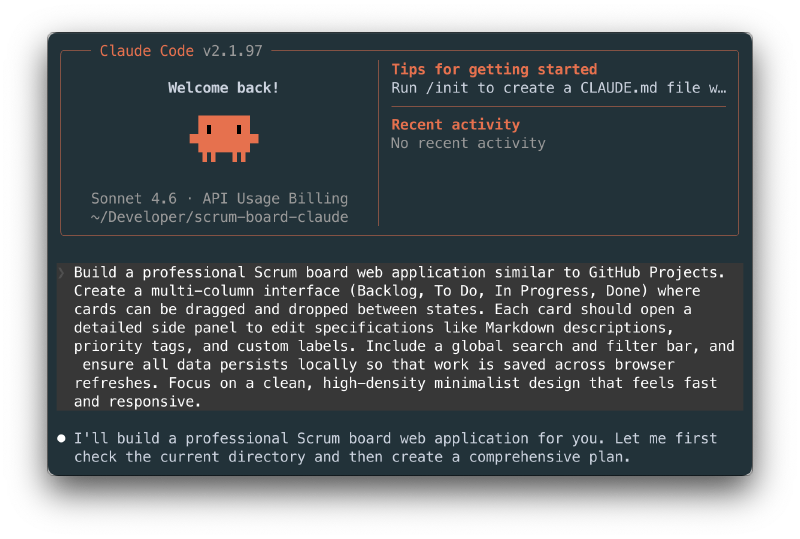
The Results #
Claude Code generated a complete vanilla JavaScript web application (HTML, CSS, and JavaScript in a single file) with full functionality. Total time: 21 minutes.
The application includes:
- ✓ Drag-and-drop functionality between columns
- ✓ Detailed card editing panels
- ✓ Search and filter capabilities
- ✓ Clean, minimalist UI that’s actual usable
- ✓ Local storage persistence
Screenshots of the working app:
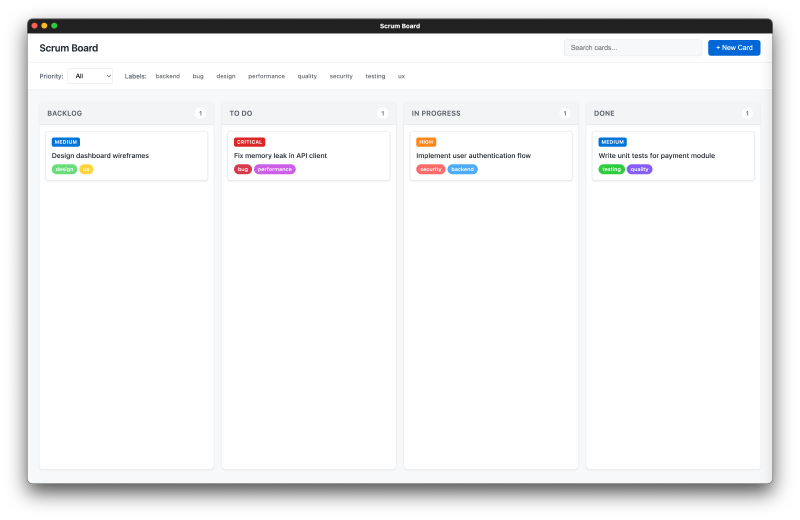
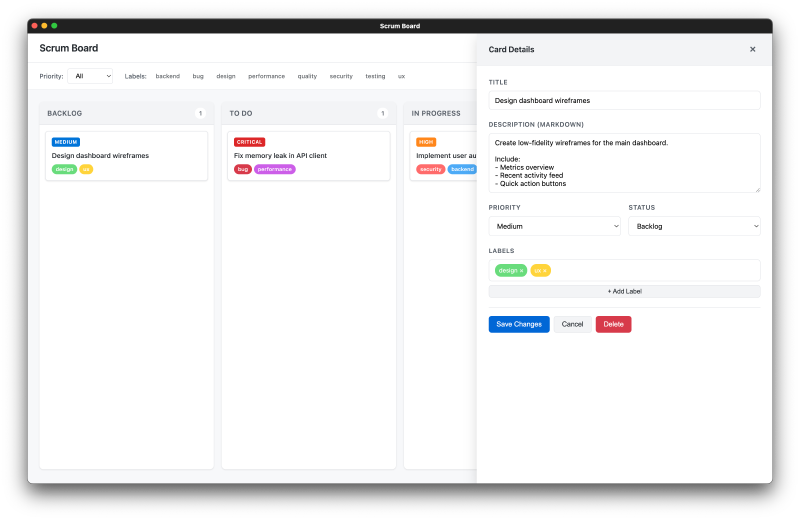
The quality is impressive. It’s not just scaffolding—it’s a functional, well-designed application that could be deployed and used immediately.
Performance Metrics #
While Claude Code was building this application, I monitored the Spark’s resource usage:
- GPU Usage: Consistently 95%+ utilization
- Power Consumption: ~170W sustained
- Memory Usage: 90-95GB of the available 128GB
- Fan Noise: Medium intensity (expected under sustained load)
- Heat: The device got hot on the shell, but that’s normal for this type of workload
These metrics show the system was working hard, but responsibly. The memory didn’t exceed available capacity, and the GPU was fully engaged. This is exactly what we want to see.
Key Takeaway #
The local model delivered production-quality code in reasonable time, all under a local environment. No token limits, no subscription fees, no rate limiting. The infrastructure was fully utilized and delivered results.
The Path Forward #
The open-source LLM landscape is evolving rapidly. Models like Step-3.5-Flash are becoming more capable, more efficient, and more competitive with proprietary solutions every few months.
Yes, NVIDIA DGX Spark is expensive and not everyone has one. But the point of this guide isn’t to convince you to buy enterprise hardware. It’s to show you that the future of AI coding doesn’t require vendor lock-in.
Whether you eventually run models on:
- A personal workstation with consumer GPUs
- A modest server in your closet
- A cloud GPU rental service
- Or your own NVIDIA infrastructure
…the underlying principle remains: open-source models are becoming genuinely competitive alternatives to costly cloud APIs.
The initial investment in infrastructure might seem high, but over time—especially if you’re a heavy daily user—the cost-per-inference of local models becomes negligible. No subscription fees. No token limits. No surprise bills.
This is the democratization of AI coding assistants, happening right now.